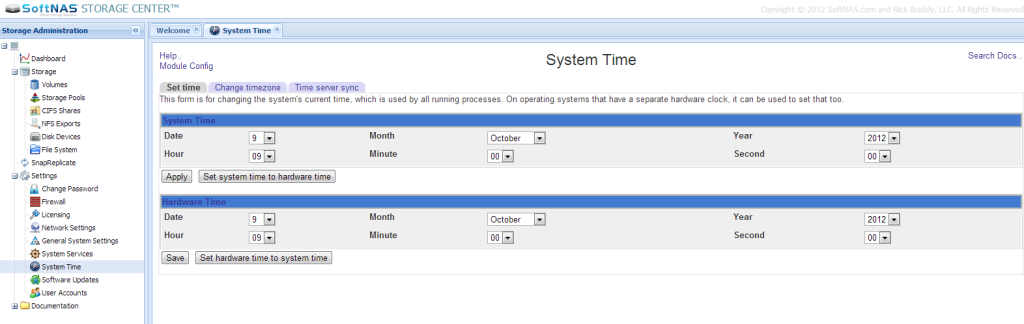
Use the System Time configuration panels to set the server date/time, specify the local timezon and (optionally) configure a time sync server.
Set System Time
Using the "Set time" panel you can set the SoftNAS server's date and time, as shown below.
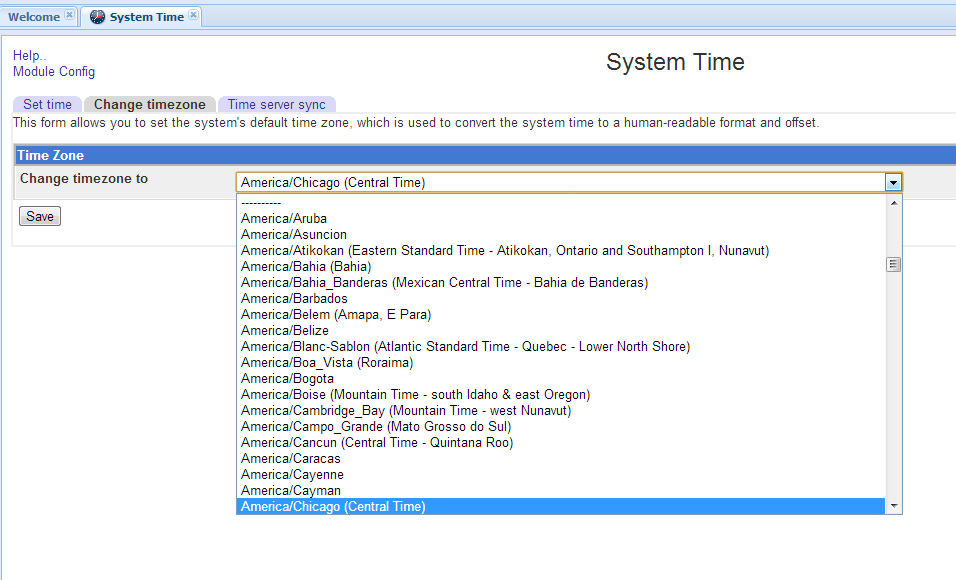
Choose Timezone
It is also recommended use the "Change timezone" panel to select the correct timezone.
Choose a timezone and then press "Save".
Configure NTP Time Server
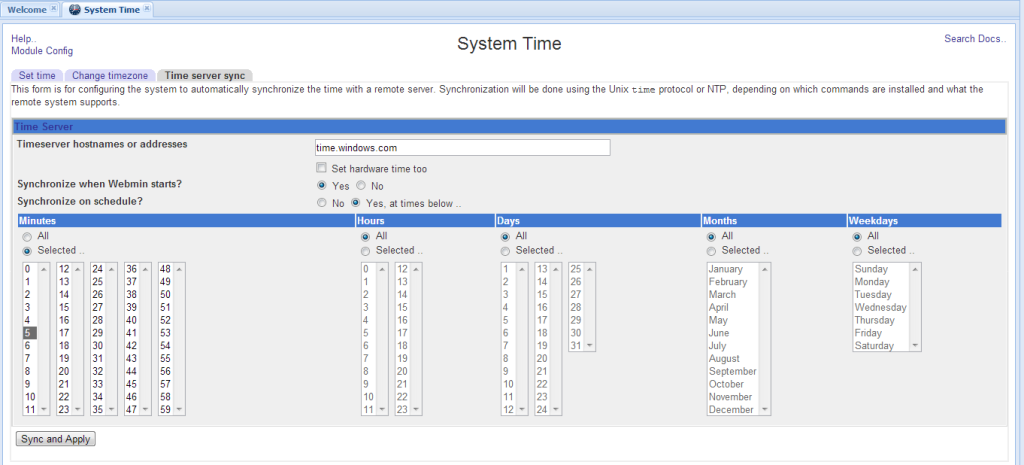
You may optionally configure an NTP time server using the "Time server sync" panel.
Choose a valid NTP time server by entering a valid DNS name or IP address. You can enter multiple, comma separated timeservers.
It is recommended to automatically synchronize on a schedule (default, every 5 minutes) to keep the SoftNAS server's time as accurate as possible.
After configuring time synchronization options, press the "Sync and Apply" button to synchronize now (and validate your sync servers) and apply the configuration changes.
Note: If you are running on Windows domain, it is common best practice to use your internal domain controllers as the authoritative time source for all servers. It is recommended to synchronize SoftNAS with the same time server your applications and client computers use for best results.
Time servers: