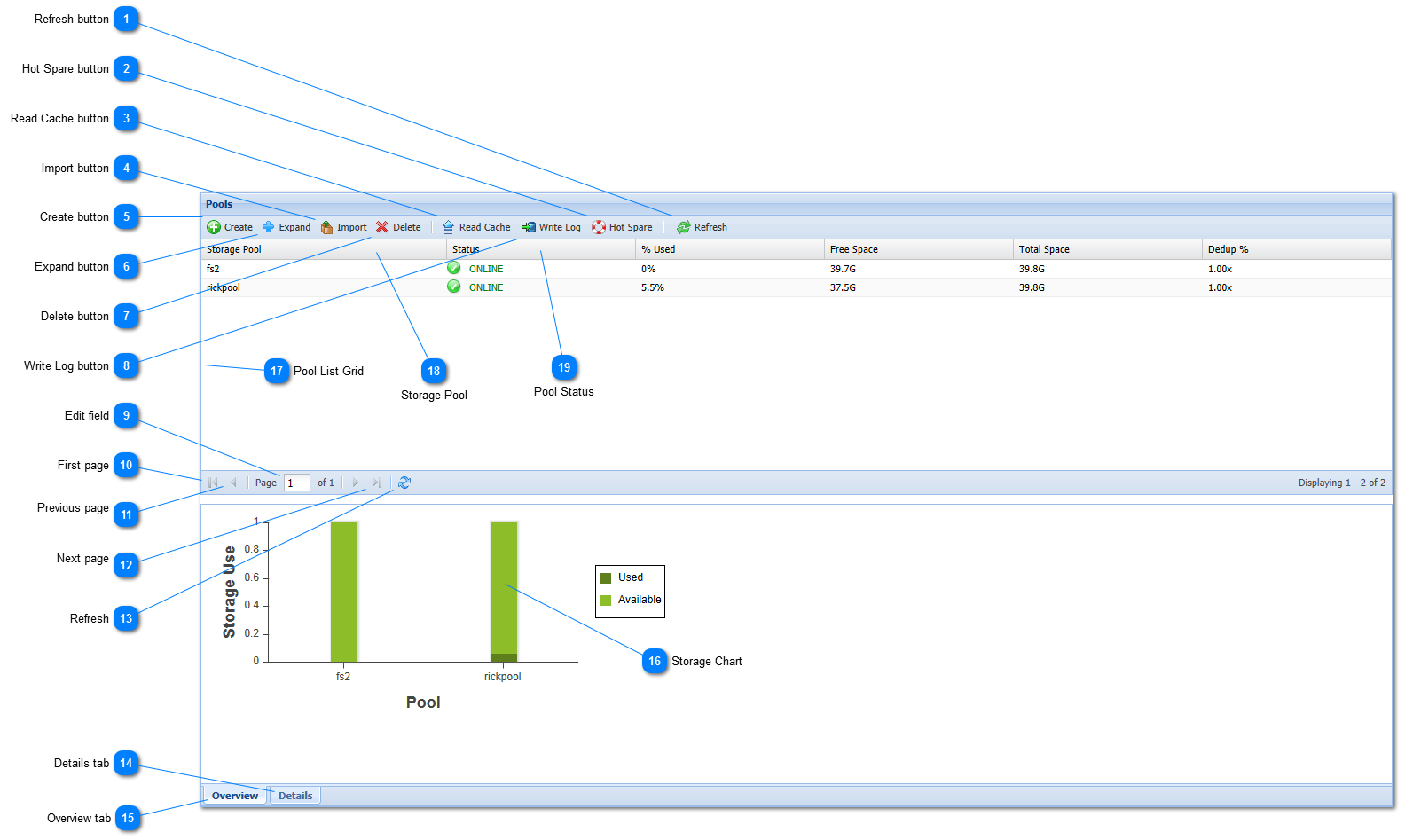
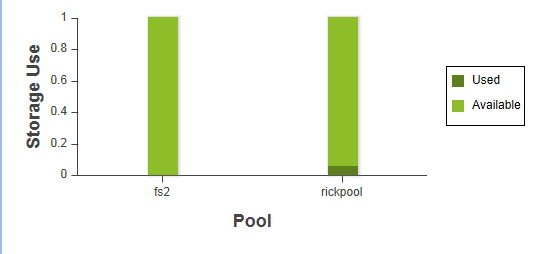
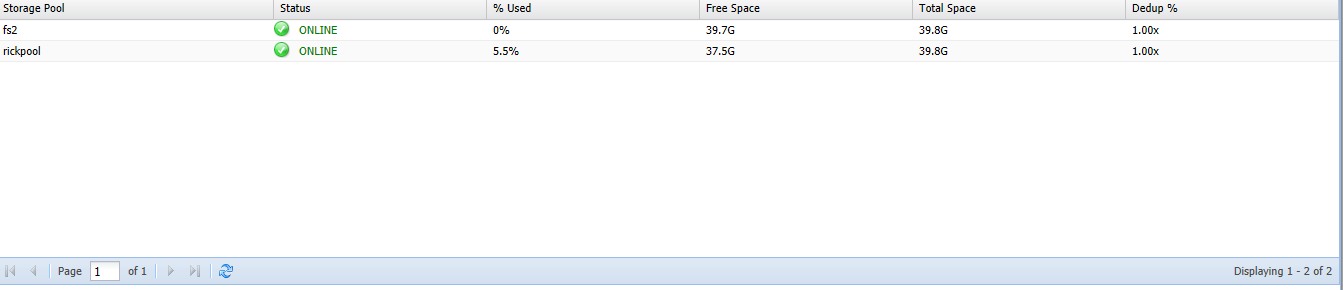
The Storage Pools tab is where you view and manage "storage pools". A storage pool is an aggregated set of storage comprised of one or more underlying storage devices; e.g., disk drives, RAID arrays, VMDK's and other block storage devices. The storage on these devices is "aggregated" into a unified pool of storage that can be managed and deployed as a single "pool". Each pool provides storage which is then allocated for use into "volumes".
Refresh button
Refresh the pools display with the latest storge pool values.
Add or manage read cache device(s) for selected pool. It is common to use SSD (solid-state disks) for additional read-caching, which provides a large, fast read cache that is much larger than available cache memory.
Import pools that were previously deleted or created on a different system. For example, a "foreign" pool created on a different SoftNAS system can be imported into SoftNAS and used.
Note: all disk devices used in the pool must be available and unmodified for imported pools to be valid.
Create a new storage pool. Storage pools are comprised of one or more disk devices combined to create a large pool of storage. Storage pools are then allocated and shared as Volumes.
Expand an existing storage pool by adding additional RAID arrays to the pool. Note: You cannot add devices to an existing RAID array - you must add a new array to create a larger storage aggregate.
A write can optionally be added which acts as a write transaction log, buffering and caching incoming write requests until they can be written to their permanent location on disk. Write logs are useful for buffering and optimizing large numbers of small write requests (that would otherwise each require large block I/O requests to be written to disk). A write log can also be used as additional protection by keeping a separate transaction log of writes, in case of a failure and need to replay and reconstruct the most recent writes.
The current status of the pool is shown in the Status column.
The following status indicators may be shown depending upon the state of the storage pool.
ONLINE icon indicates the pool is online, healthy and operating normally.
DEGRADED icon indicates the pool is in a degraded state, continues to process data normally, but is at increased risk and requires attention; e.g., replace a failed disk in a RAID array.
UNAVAIL or FAILED icon indicates the pool is in a failed state and is not currently processing storage requests. This usually means there are disk failures exceeding RAID protection.





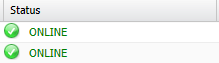
 ONLINE icon indicates the pool is online, healthy and operating normally.
 DEGRADED icon indicates the pool is in a degraded state, continues to process data normally, but is at increased risk and requires attention; e.g., replace a failed disk in a RAID array.
 UNAVAIL or FAILED icon indicates the pool is in a failed state and is not currently processing storage requests. This usually means there are disk failures exceeding RAID protection.