The Software Updates panel displays the current SoftNAS version that is installed and running. It also shows the latest, stable version that is available for update.
Applying Software Updates
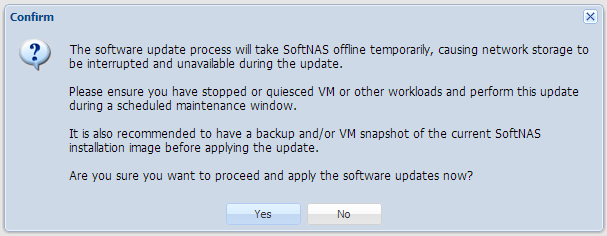
Applying updates to SoftNAS is easy. Just press the "Apply Update Now" button, then confirm that you want to update your SoftNAS installation.
As indicated in the above confirmation dialog, applying updates will cause SoftNAS to be taken offline briefly during the update process. Therefore, it is extremely important to ensure that updates are applied during a scheduled maintenance window, and with production workloads (e.g., VM's, applications, email servers, file servers, etc.) in an offline state during the update.
The update process only takes a few minutes, to download the update files then apply the updates; however, do not apply updates to a production system! (otherwise, data loss may occur)
As with any software update, you should always have a current backup of all data and SoftNAS itself prior to making any changes to a production system. For example, you may use backup tools which perform a "VM snapshot" operation to create a consistent backup/recovery point, which should be sufficient.
Recommended Software Update Procedure
The following steps are recommended for applying software updates to SoftNAS running in production environments:
1. Schedule the software update to take place after a regular backup (verify backups completed successfully).
2. Schedule downtime of Virtual Machines and other workloads connected to SoftNAS prior to applying the update; e.g., place VMware hosts into maintenance mode, shut all running VM's down in a graceful manner.
3. Take a "VM Snapshot" using VMware / vCenter or Hyper-V management console (or use other appropriate means for rapid recovery, as indicated in your environment). Rule of thumb. Use the same precautions you would when applying Windows Updates to a production Exchange or SQL Server (for example).
4. Apply the SoftNAS Software Updates as described above.
5. Verify proper operation of SoftNAS after the update has completed.
6. Enable a few VM's and verify proper operation.
7. Delete the VM snapshot of the prior SoftNAS version at an appropriate time (perhaps during a subsequent maintenance window, not requiring VM downtime).
Should you encounter any issues after the software update, you should be able to revert to the prior SoftNAS version via the VM snapshot image. Also, after each update, the prior version of the SoftNAS StorageCenter and server code remains available (it is saved in the folder /var/www/softnas.preupdate.