Overview
SnapReplicate™ provides a simple yet powerful means of defining a replication relationship between two SoftNAS controllers - the "source" node and another node (the "target").
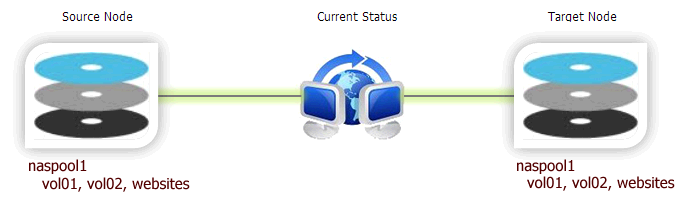
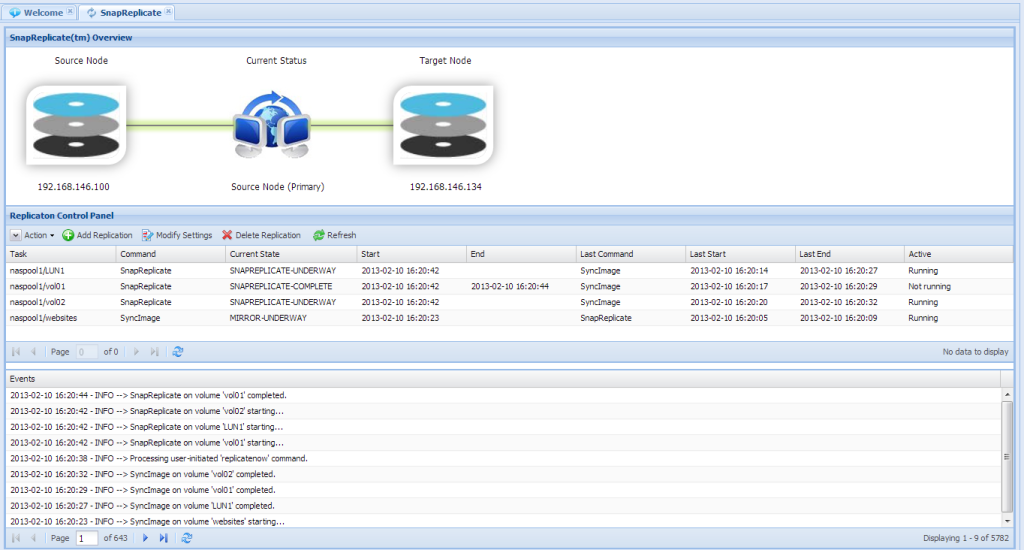
SnapReplicate can be used for backup purposes, to create a hot-spare for failover and disaster recovery, and for site-to-site data transfers (e.g., region-to-region data replicas across Amazon EC2 data centers, VMware failover across data centers, etc.). In the screenshot below, we see a "Source Node" and a "Target Node". Data is always replicated from source to target. The "Current Status" shows the replication active symbol (the two computers with blue arrow), along with the green transfer indicator. In this case, we see "Source Node (Primary)", which indicates we are viewing the current primary controller on the source node.
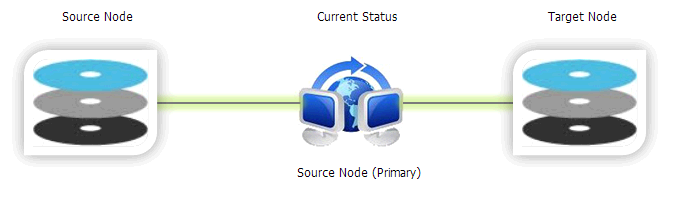
Replication relationships are two-way; that is, either controller can become the primary "source" node, to facilitate failover operation. For example, if the source node fails or requires maintenance, then the administrator can log into SoftNAS StorageCenter on the target node, and issue a "Takeover" command, which will cause the target to take over the role of source. After the source node is repaired and back operational, a "Giveback" command can be used to revert control back to the original source node.
Preparing the SnapReplicate Environment
The first step in preparing a SnapReplicate deployment is to install and configure two SoftNAS controller nodes. Each node should be configured with a common set of storage pools with the same pool names. Only storage pools with the same name will participate in SnapReplicate. Pools with distinct names on each node will not be replicated. For best results, it is recommended (but not required) that pools on both nodes be configured identically (or at least with approximately the same amount of available total storage in each pool).
As shown below, we have a storage pool named "naspool1" on both nodes, along with three volumes: vol01, vol02 and websites. SnapReplicate will automatically discover the common pool named "naspool1" on both nodes, along with the source pool's three volumes, and auto configure the pool and its volumes for replication.
Other important considerations for the SnapReplicate environment include:
- Network path between the nodes
- NAT and firewall paths between the nodes (you must open port 22 for SSH between the nodes)
- Network bandwidth available and whether to configure throttling to limit replication bandwidth consumption
Please note that SnapReplicate creates a secure, two-way SSH tunnel between the nodes. Unique 2048-bit RSA public/private keys are generated on each node as part of the initial setup. These keys are unique to each node and provide secure, authenticated access control between the nodes. Password-based SSH logins are disabled and not permitted (by default) between two SoftNAS nodes configured with SnapReplicate. Only PKI certificate-based authentication is allowed, and only from "known hosts" with pre-approved source IP addresses; i.e., the two SnapReplicate nodes (and the configured administrator on Amazon EC2).
After initial setup, SSH is used for command and control. SSH is also used (by default) as a secure data transport for authenticated, encrypted data transmission between the nodes.
More information on NAT, firewalls and VPN tunnels is provided toward the end of this section.
Establishing a SnapReplicate Relationship
You will need to be prepared with the IP address (or DNS name) of the target controller node, along with the SoftNAS StorageCenter login credentials for that node.
To establish the secure SnapReplicate relationship between two SoftNAS nodes, use the following steps.
1. Log into the source controller's SoftNAS StorageCenter administrator interface using a web browser
2. Launch SnapReplicate administration by clicking on "SnapReplicate" in the menu area in the left window.
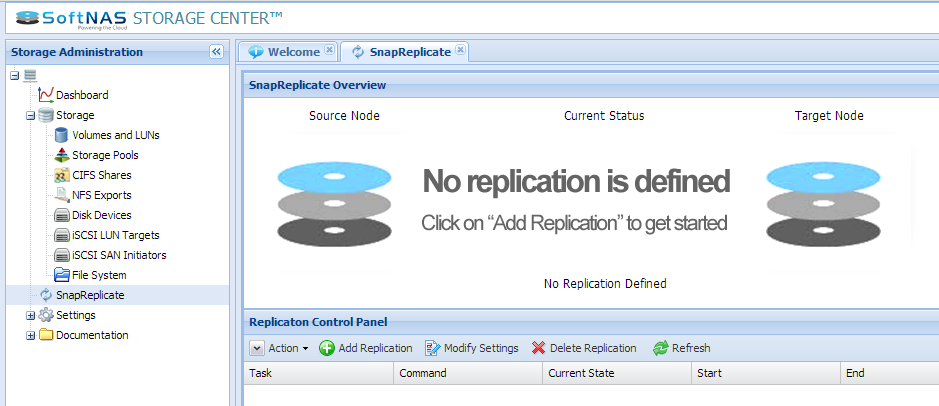
You will see the following:
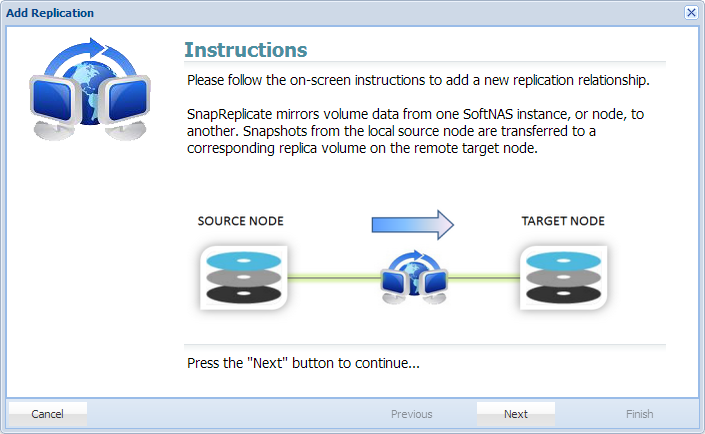
3. Click on the "Add Replication" button. The Add Replication Wizard panel appears. Read and follow the on-screen instructions.
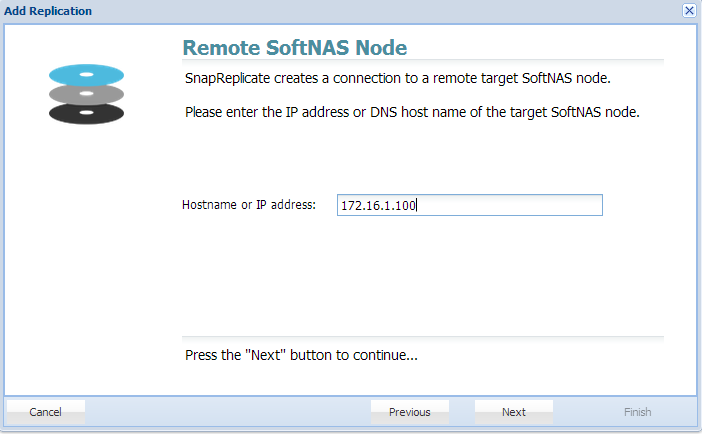
4. Enter the IP address or DNS name of the remote, target SoftNAS controller node (then press "Next").
To connect the nodes, the source node must be able to connect via HTTPS to the target node (similar to how the browser user logs into StorageCenter using HTTPS). HTTPS is used to create the initial SnapReplicate configuration. Next, several SSH sessions are established to ensure two-way communications between the nodes is possible. SSH is the default protocol that is used for SnapReplicate for replication and comannd/control.
Amazon EC2 Note: To create a SnapReplicate relationship between two EC2 nodes, the source node must be able to connect via HTTPS to the target node (similar to how the browser user logs into StorageCenter using HTTPS). HTTPS is used to create the initial SnapReplicate configuration. Next, several SSH sessions are established to ensure two-way communications between the nodes is possible. SSH is the default protocol that is used for SnapReplicate for replication and comannd/control.
Amazon EC2 Note: When connecting two Amazon EC2 nodes, keep in mind that you will need to use the internal instance IP addresses (not the Elastic IP, which is a public IP). That's because the traffic gets routed internally by default between instances in EC2 by default. Be sure to put the internal IP addresses of both EC2 instances in the Security Group to enable both HTTPS and SSH communications between the two nodes. To view the internal IP address of each node, from the EC2 console, select "Instances", then select the instance - the "Private IPs" entry shows the instance's private IP address used for SnapReplicate.
For example:
Node 1 - Virginia, East (zone 1-a) Private IP: 10.120.1.100 (initial source node)
Node 2: Virginia, East (zone 1-b) Private IP: 10.39.270.23 (initial target node)
Add the following Security Group entries:
SSH 10.120.1.100/32
SSH 10.39.270.23/32
HTTPS 10.120.1.100/32
HTTPS 10.39.270.23/32
VMware and Hper-V: Similarly, it's important to understand your network topology and the IP addresses that will be used - internal vs. public IP addresses when connecting the nodes.
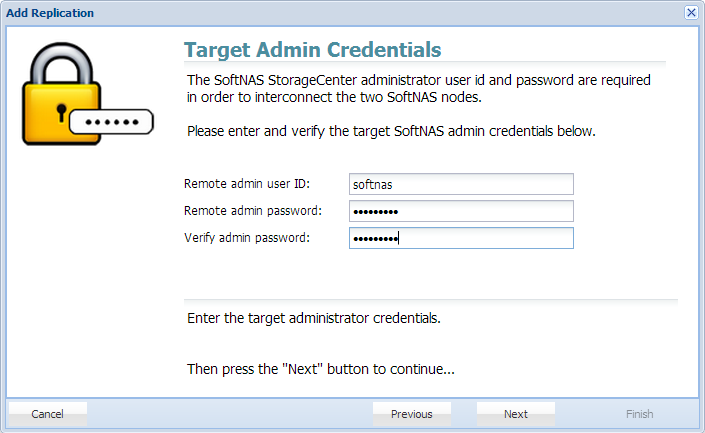
5. Enter the SoftNAS administrator's login password for the remote, target node (then press "Next").
When you press Next, the IP address/DNS name and login credentials will be verified. If there is a problem, an error message will be shown (use the "Previous" button to go back and correct any errors, then press Next to try again).
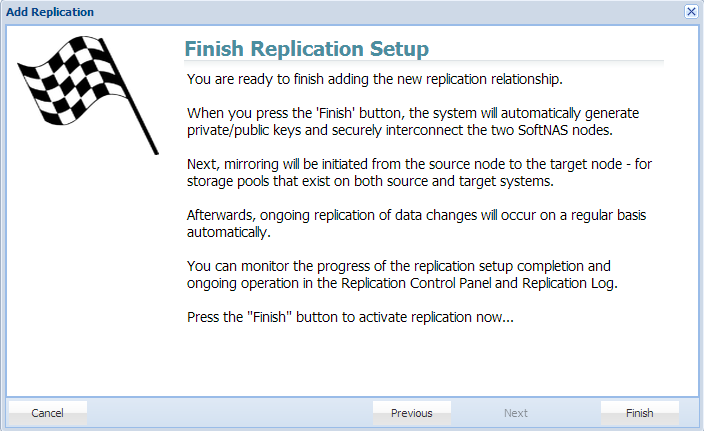
6. Read the final instructions and messages, then press "Finish" to initiate SnapReplicate
After the SnapReplicate relationship is established between two SoftNAS controller nodes, a "SyncImage™" operation is automatically triggered. SyncImage compares the storage pools on each controller, looking for pools with the same name. For example, let's say we have a pool named "naspool1" configured on each node. Volume discovery will automatically add all volumes in "naspool1" from the source node to the replication task list.
For each volume added as a SyncImage task, that volume will be created on the target node (if it exists already, it will be deleted and re-created from scratch to ensure an exact replica will be created as a result of SyncImage). SyncImage then proceeds to create exact replicas of the volumes on the target.
After data from the volumes on the source node is mirrored to the target, once per minute "SnapReplicate" transfers keep the target node "hot" with data block changes from the source volumes.
The SnapReplicate Control Panel will display tasks and an event log similar to this:
Your SnapReplicate relationship is established and replication should be taking place.
Modifying SnapReplicate Settings
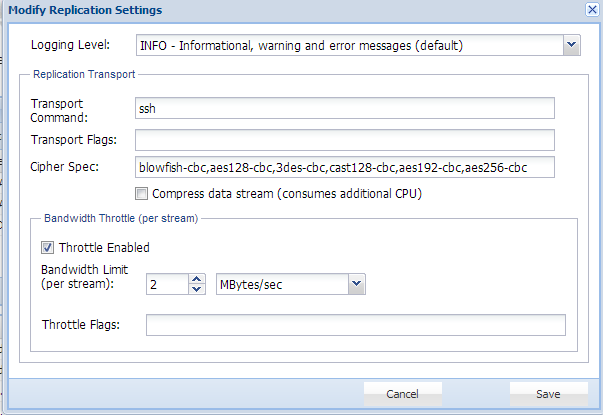
To modify SnapReplicate settings, click on the "Modify Settings" button. The following dialog will appear:
Using this dialog, you can control various SnapReplicate settings:
Logging Level - this controls the level of information shown in the Events log area
Transport Command - the Linux command line string used to create a transport tunnel from source to target (do not modify this unless you are sure how).
Transport Flags - additional flags and options for the transport command line
Compress data stream - when checked, data will be compressed before being sent across the network. This will increase CPU load, so plan resources accordingly.
Cipher Spec - the list of ciphers, in priority order, that will be used by SSH for encryption of command & control and transport sessions
Throttle Enabled - when checked, a bandwidth throttle limits the maximum network bandwidth used for each replicated volume
Bandwidth Limit - the maximum bandwidth amount, per stream / volume. Enter a numeric value and choose the units (e.g., MBytes/sec, Kbits/sec, etc.)
Throttle Flags - optional flags which can be used to further customize the throttle (advanced - ignore for now)
Delete Replication
The Delete Replication button causes the SnapReplicate relationship between the two nodes to be dissolved. No data is deleted. All volumes on both source and target nodes remain intact. Snapshots associated with SnapReplicate on the affected volumes are purged; otherwise, no changes to pools or volumes occurs when the replication relationship is deleted. The SSH relationship between the nodes is also dissolved, along with the PKI public/private keys and SSH login rights.
About NAT and Firewalls
SnapReplicate attempts to automatically discover the proper return path from the target node to the source. It does this on the target by analyzing the IP address of the SoftNAS StorageCenter webserver involved in establishing the relationship phase. Consider the following scenarios.
Scenario 1 - Same data center deployment
When deployed in the same data center, the IP addresses will likely be locally routable, with no firewall between the controllers.
Scenario 2 - Different data center deployment
When the source and target are deployed in different data centers, each node will exist on different networks separated by several layers of firewalls. To determine its return path (from target-to-source), the automated setup process will use the source data center's public IP address. For example:
source node ------ Data Center 1 ------ Firewall 1------ Internet/cloud ------ Firewall 2------ Data Center 2 ------ target node
172.16.1.100 ==> 172.16.1.0/24 ==> NAT ==> 54.188.13.227 ==> 215.100.1.7 NAT ==> 172.16.30.0/24 ==> 172.16.30.225
The above path shows a network topology involving two data centers, connected via two firewalls using NAT. In this example, the source's IP address will appear to be 54.188.13.227, the public IP of Firewall 1. SnapReplicate on the target node will use the public IP address 54.188.13.227 to communicate from target-to-source (during a "takeover", where the target takes over as source during a failover event). It is important that Firewall 1 be configured to allow SSH (port 22) inbound traffic from data center 2 public IP 215.100.1.7, and NAT route that traffic to the source node at 172.16.1.100, as shown below:
172.16.1.100 <= = 172.16.1.0/24 <= = NAT <= = 54.188.13.227 <= = 215.100.1.7 NAT <= = 172.16.30.0/24 <= = 172.16.30.225
VPN Tunnels
VPN tunnels may be used to provide added security with IPSec encapsulation of the SSH traffic (vs. opening port 22 directly on the Internet), and are highly-recommended when connecting SoftNAS nodes across data centers involving the public Internet. While the SSH transports use the strongest commercially-available PKI authentication and encryption, use of IPSec provides another layer of security and authentication that is likely required from a security policy standpoint in many environments.
WAN Deployment
SnapReplicate is intended for deployment using typical WAN links. For best results with WAN deployment, it is recommended to configure a bandwidth throttle which limits the amount of network bandwidth each "stream" is allowed to consume. Bandwidth is throttled on the "outbound" side; i.e., from source to target.
A unique stream (e.g., SSH session) is created for each SyncImage and SnapReplicate task. Each time a volume is replicated by one of these tasks, the bandwidth throttle will limit the amount of bandwidth allowed per stream.
For example, if you have 10 volumes and wish to limit the maximum WAN bandwidth consumption to 2 Mb/sec, then set a conservative per stream bandwidth to 200 Kb per stream (2 Mb / 10). If instead you know your data changes from the busiest volume no more than 2 Mb/sec worth of data changes each minute, then you can choose a more aggressive throttle setting of 2 Mb/sec for maximum burst throughput (in this case, if all 10 streams were to simultaneously experience significant change, a brief burst of up to 20 Mb/sec would be theoretically possible).
You may also wish to employ other methods of WAN bandwidth management; e.g., at the router or other network level.
What Gets Replicated
SyncImage creates an exact replica of each configured source volume on the target. It first deletes the volume (if it exists) on the target, so be certain to choose the initial source and target nodes correctly.
SnapReplicate keeps each target volume up to date with the latest data changes applied to the source volume. SnapReplicate runs once per minute as a cron job.
During each replication cycle (once per minute or anytime an ad-hoc "Replicate Now" cycle occurs), certain configuration information is also transferred from source to target, to facilitate a complete failover. Information transferred includes NFS exports, iSCSI targets and initiator configuration, and CIFS (Samba) configuration files.
Takeover and Giveback
A "takeover" command can be issued from the SnapReplicate control panel on the target node. For clarity, we will use "node 1" to indicate the original source node and "node 2" to indicate the original target node (before a takeover occured).
When a takeover is issued from at the target node, the following occurs:
1) The target node 2 configures itself as the new source node, assuming all duties of the source.
2) The target applies the saved configuration changes (NFS exports, CIFS and iSCSI configs, etc.) and then restarts the affected services (NFS, Samba, iSCSI) with the proper configuration. This enables the target to begin serving storage requests as if it was the former source controller.
3) The new source node 2 will reset its replicate state back to a "start" state, which means when the target node 1 (the former source node) comes back online, replication will start over with a fresh SyncImage, followed by incremental SnapReplicate cycles once per minute, from node 2 to node 1. This will automatically re-synchronize the two nodes. If you want to manually control when re-synchronization from node 2 to node 1 occurs, then place node 2 into a deactivated state using the "Deactivate" command immediately following a successful takeover.
4) A takeover timestamp was stored on the target node 2 at the time the takeover was initiated. This timestamp is used to inform the old source node 1 (which may have failed) of the takeover event. When the failed source node 1 is reactivated, it will see the takeover timestamp of node 2, which took control, and node 1 will assume the role of "target" appropriately.
Once the node 1 is repaired and back online, to fail back to the original node 1, use the "Giveback" command from node 2. Alternatively, you can issue a "Takeover" command from node 1, which will cause node 1 to assume its original duties as the primary source node.
Limitations
Takeover and giveback only affect which node is source and which is target, and the direction replication data flows between the nodes. It does not alter either node's IP address, DNS name or network identity in any way.
It is recommended to use DNS names as a means of redirecting incoming NFS, CIFS and iSCSI requests from one node to the other (which is a manual process that should be planned for and handled accordingly during a failover event).
It is certainly possible to integrate third-party failover systems using SnapReplicate scripting (see the SoftNAS User Reference Guide for information on SnapReplicate command line usage), which is beyond the scope of this installation document.
An automatic failover module is on the SoftNAS roadmap in 2013, which will automate the entire failover process.