Licensing
Click on Settings > Licensing to access the Licensing dialog. Licensing information will be shown in a dialog that looks similar to the one shown below:
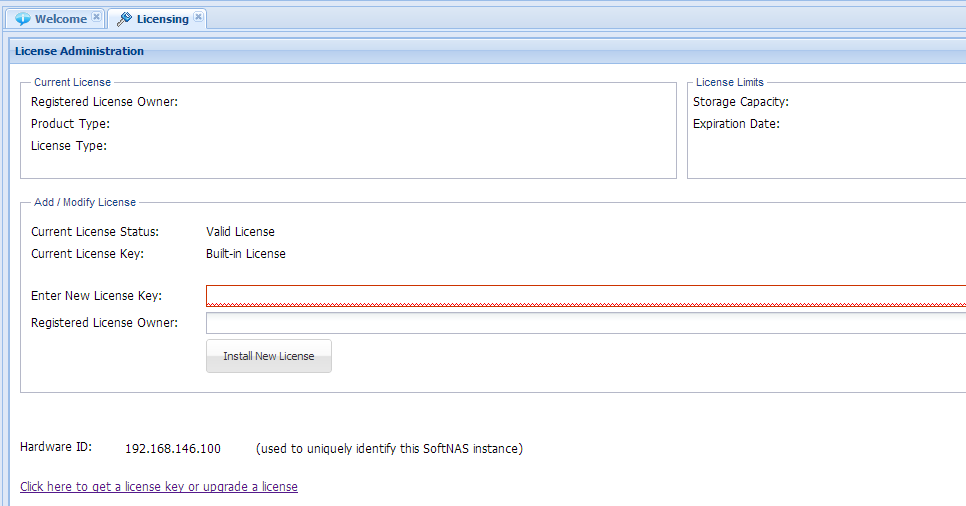
As shown above, the following fields are displayed:
-
Registered License Owner: this is the name of the company (if provided) or email address (if company not provided) who purchased the license
-
Product Type: product code indicating the type of product license installed
-
License Type: indicates whether the license type; e.g. trial, monthly or annual subscription, etc.
-
Storage Capacity: the amount of storage (maximum) that is licensed
-
Expiration Date: the date on which the license will expire (for trial and subscription licenses)
-
Current License Status: indicates whether the license is currently "valid", "expired", etc.
-
Current License Key: The license key string (for a paid or trial license) or "Built-in License" for the default, free license that's built in
-
Hardware ID: this value identifies the hardware or IP address that SoftNAS licenses are identified with in the customer environment. For VMware and Hyper-V environments, this value is the primary IP address that is used to share data on the network; for Amazon EC2, this is the unique computing instance ID.
To install a new license, copy and paste the license key string into the field marked "Enter New License Key", then enter the "Registered License Owner" string exactly as shown in your license notification email (this will typically be the Company Name the license is registered to for a business, or email address if registered to an individual or non-company entity).