SoftNAS™ Reference Guide


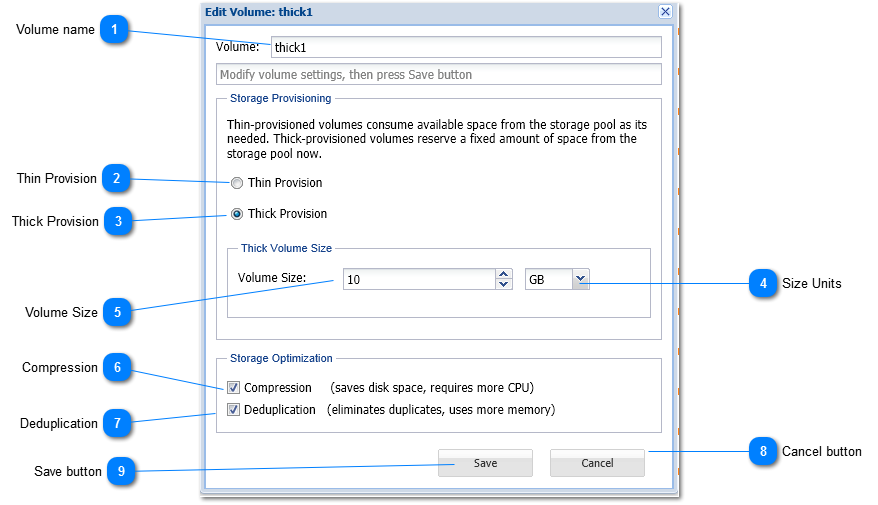
Edit Volume Dialog

Edit Volume Dialog
 
1

Volume name

1. Volume name
 
Displays the volume name (cannot change volume name after it is created as it may be shared).
2

Thin Provision

2.  Thin Provision
By default, volumes are thin-provisioned. Thin-provisioning allows a volume to acquire storage from its Storage Pool on an as-needed basis, as new data is written to the volume.  Thin-provisioning enables many volumes to share a storage pool without an upper limit being placed on the volume itself (the only upper limit to the volume's size is available space in the pool).
 
3

Thick Provision

3. Thick Provision
Select the Thick Provision button to pre-allocate and reserve a specific amount of space for the volume.  Thick-provisioned volumes reduce the amount of space available in the Storage Pool by reserving this space for use by a specific volume.  When a thick-provisioned volume reaches its maximum volume size, no more data can be written and a volume full error will be returned for writes to a full volume.
 
Thick-provisioned volumes can be re-sized at any time to add space (or return space to the storage by by reducing the volume size).
 
When Thick Provision is chosen, the Thick Volume Size must be specified.
4

Size Units

4. Size Units
The Size Units selector is used to choose the units for the Volume Size (default:  GB or Gigabytes).  The following values may be selected by clicking on the combo box control and choosing an item:
 
MB - Megabytes
 
GB - Gigabytes (default)
 
TB - Terabytes
 
5

Volume Size

5. Volume Size
When Think Provision is selected the Volume Size specifies how much space is to be pre-allocated to the volume.  Space is determined by entering a Volume Size amount as a floating point value, along with choosing the Size Units.  Once a Storage Pool has been selected for a thick-provisioned volume, the amount of available space to allocate is displayed below the Volume Size field, as shown in the example below.
 
The Volume Size value can be any valid numeric value; e.g., 10, 12.5, 100.0, 1.25
6

Compression

6.  Compression
Select the Compression checkbox option to compress all data stored on the volume.  Compression saves disk space, at the expense of additional CPU overheads for each read and write request (to decode and encode the data).  Depending on how compressible the data is, it is common to see data compression rates up to 50% or more.
 
Note: If you compress a significant amount of data, be sure to observe the amount of actual CPU consumed during a typical day, and if necessary, add more CPU capacity to the SoftNAS VM as required to ensure compression is fast and efficient.  If data is not highly-compressible, then disabling compression provides a better performance tradeoff.
7

Deduplication

7.  Deduplication
Select Deduplication to eliminate duplicate disk blocks from being written to disk.  For certain types of data (e.g., Windows virtual machine images, which are highly-redundant in virtual desktop applications), deduplication can save up to 80% on storage requirements by eliminating duplicate data.  Each time a duplicate data block is to be written, a pointer to the existing duplicate block is created instead, along with increasing the duplicate block reference count.  To make these operations as fast as possible, a table of deduplicated blocks is maintained.  A hash table of deduplicated blocks is kept in memory to make lookups very fast.  When a duplicate block is read, it is usually in cache memory and is simply returned with no disk I/O required.
 
It is recommended to avoid using deduplication unless the data is highly-duplicative, because of the memory impact of deduplication.  It is estimated that for every terabyte of deduplicated data managed, one gigabyte of memory is required for the deduplication lookup tables.  These tables compete with cache memory, which can reduce the overall performance of SoftNAS.  For more details on best practices for use of deduplication, please refer to System Requirements.
8

Cancel button

8. Cancel button
 
Press Cancel button to exit this dialog without making any changes to the volume's configuration.
9

Save button

9. Save button
 
Press the Save button to save changes to the volume's configuration.