Disk Devices provide the underlying storage for SoftNAS and Storage Pools. Disk devices are attached to SoftNAS at the virtualization platform layer, often as virtual hard disks (e.g., VMDK in VMware, VHD in Hyper-V, EBS volumes in EC2).
When a new disk device is attached, it starts out in a raw, unpartitioned state. Before it can be used, the disk device must be partitioned.
Partitioning Disk Devices
To partition disk devices recently added to the system, launch the SoftNAS StorageCenter in a web browser and click on the Disk Devices icon

in the left-side menu.
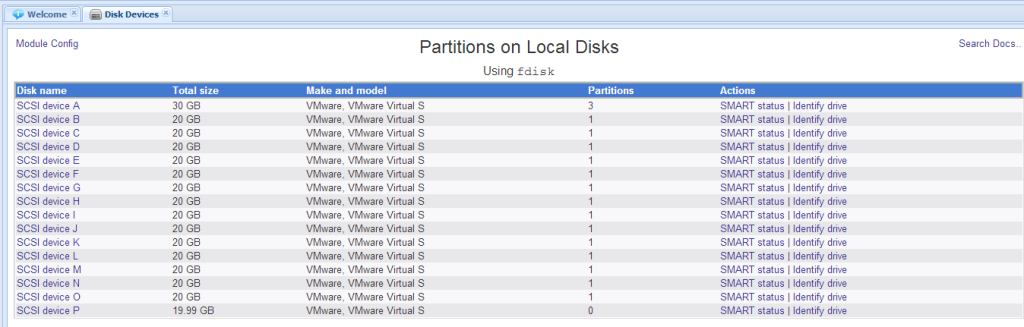
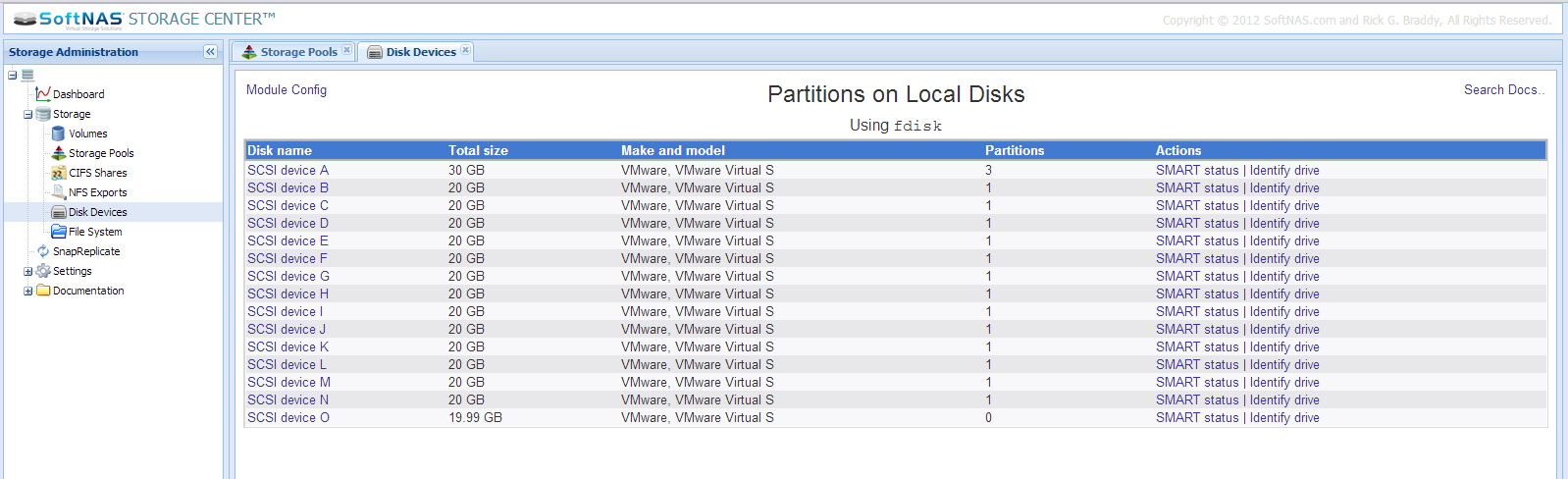
The following Disk Device list appears.
As you can see above, the last SCSI attached device "O" has zero (0) partitions. That is a "raw" disk device that needs to be partitioned for use. If you are installing for the first time, all of your disk devices will show no partitions (except SCSI device A, which is the 30 GB disk that SoftNAS was installed on).
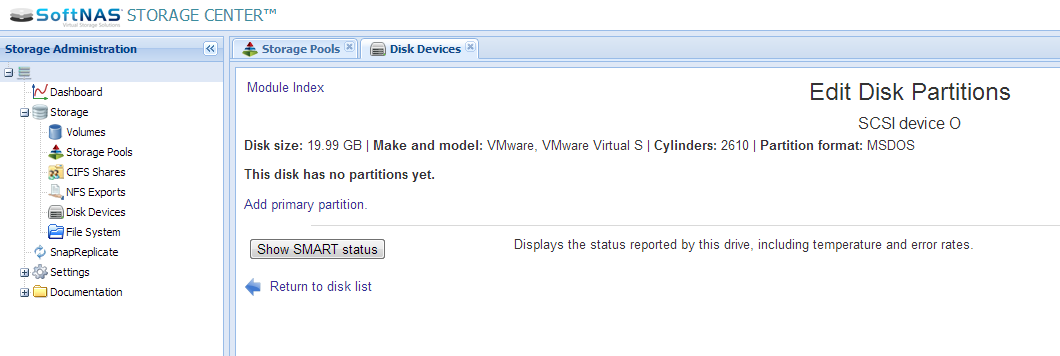
1. Click on a disk name link to launch the disk partitioning dialog.
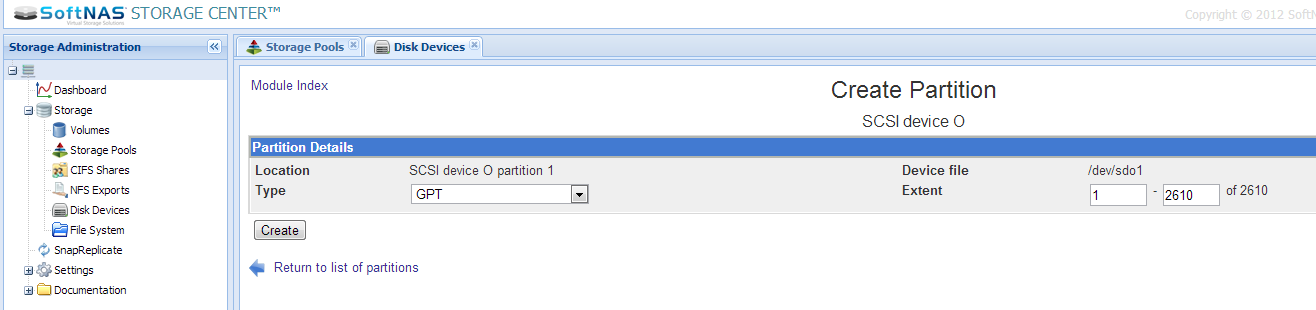
2. Next, click on the "Add primary partition" link. The "Create Partition" dialog appears:
By default, the device will be partitioned with a single, large partition. Keep the default "GPT" partition type setting.
3. Press the Create button to partition the disk.

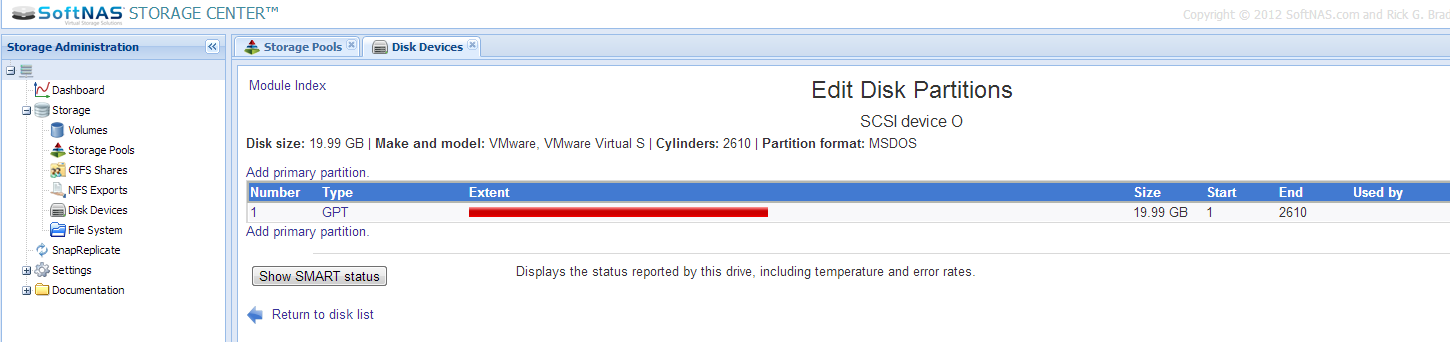
The disk device is now partitioned, as shown below. Now the partitioned disk is available for use in a storage pool.
Repeat steps 1 through 3 for each raw disk device until all disks are partitioned.
Now the disk devices should be partitioned and ready to be added to storage pools.