Admin Menu
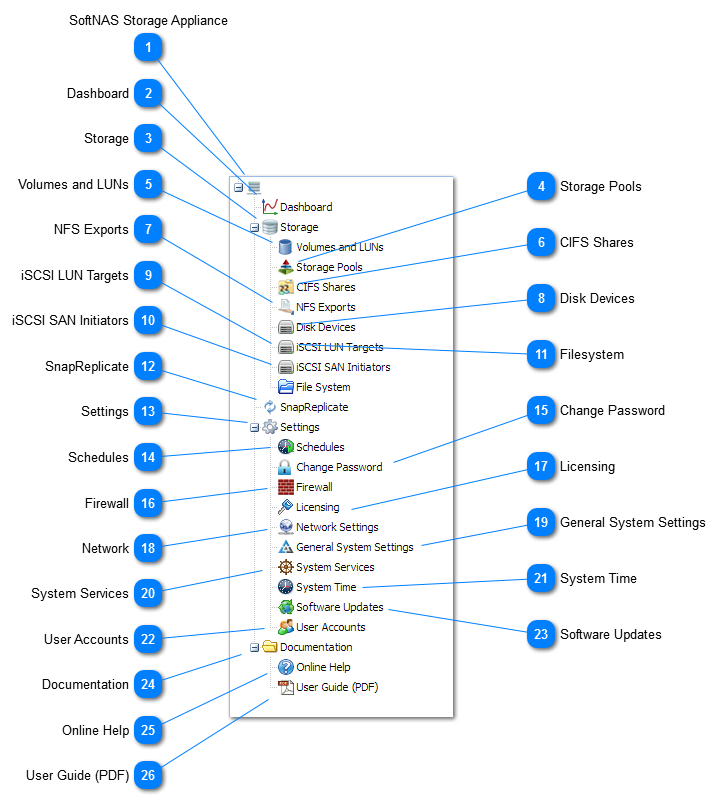


 Dashboard
Click on the Dashboard menu to access the Dashboard tab, which provides a summary of current storage operations and performance.
|


 Storage Pools
Click on the Storage Pools menu to access the Storage Pools administration panels.
|
 Volumes and LUNs
Click on the Volumes menu to access the Volumes administration panel.
|
 CIFS Shares
Click on the CIFS Shares menu to view and administer CIFS shares for Windows servers and clients.
|
 NFS Exports
Click on the NFS Exports menu to access the NFS configuration panels.
|
 Disk Devices
Click on the Disk Devices menu to view and administer disk devices attached to SoftNAS.
|


 Filesystem
Click the Filesystem menu to access view and administer the SoftNAS filesystem.
|
 SnapReplicate
Click on the SnapReplicate menu to view and administer replication between multiple SoftNAS instances.
|
 Settings
Double-click the Settings menu to expand the menu tree and access other SoftNAS configuration settings (click the "+" or "-" to expand/collapse).
|


 Change Password
Click the Change Password menu to modify a user account's password.
|
 Firewall
Click on the Firewall menu to access the Firewall configuration settings.
|
 Licensing
Click the Licensing menu to view current license information and enter a new license key.
|
 Network
Click on the Network menu to view and administer SoftNAS network settings.
|
 General System Settings
Click on the General System Settings menu item to access all detailed SoftNAS operating system (Linux) settings.
|
 System Services
Click on the System Services menu to view, start and stop system services.
|
 System Time
Click on the System Time menu to configure system time settings.
|
 User Accounts
Click on the User Accounts menu item to manage user accounts.
|
 Software Updates
Click on the Software Updates menu to view the currently-installed software version and to apply software updates (requires Internet access to perform online updates).
|


